
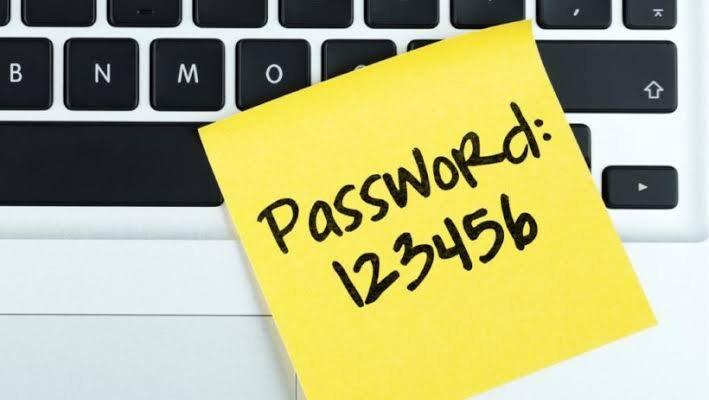
Every day we create new accounts: for work, online shopping, favorite TV shows, and banking apps. Memorizing even a dozen complex combinations of letters, numbers, and special characters is an impossible task for the human brain. That’s why most people use the same “convenient” password for everything for years.
Attackers know this. If one unsecured website containing your data is compromised, hackers gain access to your entire digital life.
In this article, we’ll explore two key tools of modern cybersecurity: password managers and hardware security keys . By installing them, you’ll reduce the risk of your accounts being hacked to virtually zero.
Password Managers: Your Safe for Digital Data
What is it? A password manager is a program (or service) that securely encrypts all your passwords and stores them in one place. You only need to remember one master password (or use your fingerprint/Face ID) to access the rest.
Why can’t I use Notepad or a browser?
- A notebook on a computer or a piece of paper can be easily stolen or lost.
- Built-in browser managers (Google, Safari, Yandex) are convenient but vulnerable. If an attacker gains access to your unlocked computer or steals your session files (cookies), they can easily dump all your passwords with a single click.
- Specialized password managers use end-to-end encryption (zero-knowledge architecture). This means that even the service’s developers don’t know your master password and can’t decrypt your data.
How does this work in practice?
- You install an application (such as Bitwarden , 1Password , KeePass , or Proton Pass ).
- Create a complex master password (and write it down on a piece of paper that you hide in your home safe—just in case).
- The manager automatically generates a unique, long password for each new site (for example,
k9#L$mP2!vQ9@zX1). - The app automatically fills in logins and passwords when you log into websites. You no longer need to remember them.
Hardware Security Keys: An Impenetrable Fortress for Two-Factor Authentication (2FA)
Two-factor authentication is great. When you enter your password and confirm your login via SMS or an authenticator app (Google Authenticator, Telegram), it protects against most hacks.
But SMS messages can be intercepted through vulnerabilities in mobile operators (SIM swapping), and codes from applications can be stolen using phishing sites that pretend to be genuine.
This is where hardware security keys (such as Yubico YubiKey , Google Titan , or Russian equivalents like Rutoken ) come into play .
What is it? It’s a small flash drive (or NFC key fob) that connects to a computer via USB or is tapped onto a smartphone.
Why is this an absolute level of protection?
- Phishing protection: The hardware key “knows” which website you’re on. If you accidentally land on a fake website (
g00gle.cominstead ofgoogle.com), the key will simply refuse to send your login information. - Physical Presence: No one in the world can log into your account, even if they know your perfect password and master password, unless they have physical access to your key.
How does this work?
- You enter your login and password (which the password manager has helpfully supplied).
- The site asks: “Please insert the security key and click on it.”
- You touch the small golden area on the key with your finger – you are logged in.
The Gold Standard of Digital Hygiene: How to Get It Right
To protect your data 99.9%, follow this simple algorithm:
- Choose a password manager. Bitwarden (there’s a great free version) or 1Password (paid, but with a stunning interface) are great starters .
- Conduct an audit. Log into your old accounts and change all passwords to random ones generated by your manager. Never use the same passwords.
- Buy a hardware key. It’s best to get two: one primary key (carry it on your house keychain), and a second backup key (keep it in a safe place at home in case the first one gets lost). Link them to your most important accounts: email (Gmail, Proton), cloud storage, crypto wallets, and work services.
- Enable 2FA wherever possible. If a hardware key isn’t supported by the service, use authenticator apps (Aegis, Ente Auth, Google Authenticator). Avoid SMS verification whenever technically possible.
Internet security isn’t about paranoia, it’s about hygiene. Just like washing our hands before eating or locking our doors, using a password manager and a hardware key should become a habitual ritual.
Spending an hour setting up these tools today will save you stress, money, and reputation in the future. Protect your data!